
Key Features
- Displays the number of search results from a Collection+ based on active filters and search text
- Displays the number of active filters on all or select CMS fields from single or multiple Collection+ components
Controls
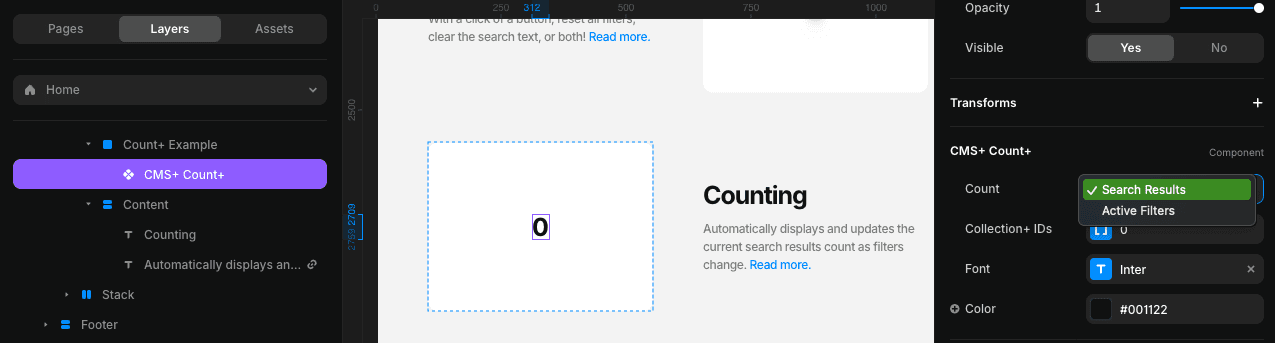
Count- Select which to count:- Search Results
- Active Filters
Collection+ IDs- Used whenCountis set to Search Results. It's a list of Collection+IDnumbers. For everyID, Count+ will sum up its items and display a grand total. Set up your Collection+ firstActive Filters- A list used when counting active filters. When multiple items are provided, Count+ will add up the subtotals and display the grand total. Each item contains these sub-controls:Collection ID- Number of the Collection+ ID list you want to count fromAll Active Filters- By default it counts all active filtersFields- If not counting active filters from all CMS fields, specify the selected CMS fields
Font- Set the font stylesFont Color- Set the color of the user input
Interactions
Zero(Optional) - Set the variant to be displayed when the count is zeroAbove Zero(Optional) - Set the variant to be displayed when the count is above zero
Interactions are accessible when Count+ is inserted in a component. Check out the Creative Use Case section below.
Step-by-Step Setup
1. Insert onto Your Page
Insert Count+ onto your page.
2. Select What to Count
Select which to count.
3. Add Items
Add items depending on your selection:
- For counting search results: Add items to
Collection+ IDslist. Count+ will sum up the search results for each Collection+ ID number provided and display the grand total - For counting filters: Add items to
Active Filters. Count+ evaluates each item, sums up the active filters, and displays the grand total
To remove an item from either list, simply right-click on it.
Creative Use Case
Displaying the number of active filters is useful but sometimes you don't need to show a zero when none are applied. By inserting Count+ inside a component, you get access to interactions!
With Count+ interactions, you can easily manage this by creating a variant with a transparent count linked to the Zero interaction. This ensures the count automatically transitions to transparency when it reaches zero. Remember to link the Above Zero interaction to transition back to the primary variant, making the count visible again!

Related Components
- Collection+ - The core list manager
- Filters+ - Filter your collection
- Search+ - Real-time search