
Preserve States & Syncing
The preserve feature keeps CMS Plus in sync as visitors move around your site. Selected filters, sorts, and searches stay intact, so when users come back to a page, the UI and results pick up right where they left off.
How It Works
CMS Plus offers an optional Preserve control that drives this behavior. When enabled, it automatically transitions your components (like CMS Plus inside a design component) to the correct variant.
To make this work, you link unique CMS Plus interactions to define which variant to display. Each interaction has a specific role, depending on the component:
- Filters+ – Link variants to show when a filter is active or inactive. Great with Clear+—all your buttons can switch off in one go.
- Search+ – Stores typed text and autofills it on reload.
- Sort+ – Detects and remembers the selected sorting order.
- Count+ – Shows different variants based on whether results are zero or above zero.
Explore the full suite of CMS Plus components to see how these interactions combine for a seamless experience.
Unique Interactions for Syncing
Here are two examples using any Filter+ and Sort+.
Important: These interactions are essential for syncing to work when Preserve is enabled. They are only needed if you're using CMS Plus inside your custom components.
Filters+ Example
Required interactions:
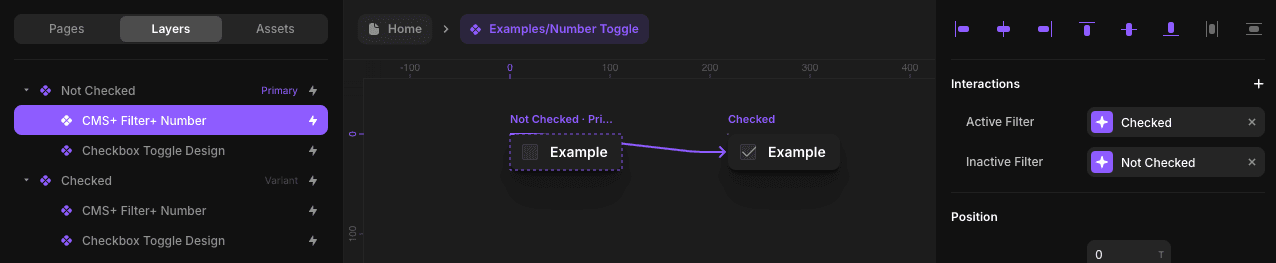
Active FilterInteractionInactive FilterInteraction
In the example below for CMS+ Filter+ Number, we've added the interactions. When this filter is active, it syncs to a variant named "Checked". When the filter is inactive, it syncs to a "Not Checked" variant.
Sort+ Example
Required interactions:
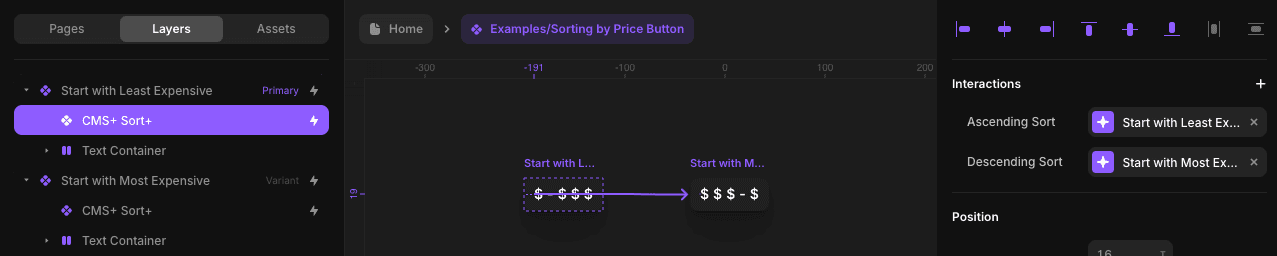
Ascending SortInteractionDescending SortInteraction
In the example below for CMS+ Sort+, we've added the interactions. When the collection's order direction is ascending, it syncs to a variant named "Start with Least Expensive". When the order direction is descending, it syncs to "Start with Most Expensive".
When to Use Preserving & Syncing
Preserve is especially useful for:
- E-commerce – Keep filters and sort preferences while browsing across pages.
- Content-heavy sites – Maintain search and filter context between sections.
- Portfolios or listings – Remember the chosen sorting direction.
Preserve adds a seamless layer of continuity to CMS Plus, keeping components in sync as visitors explore your site and improving the overall browsing experience.
Important Notes
- Preserved states are maintained as long as the visitor stays on the site.
- If the tab is closed or they navigate away from your site, filters reset to default.
- Preserve only works when CMS Plus components are inserted into custom components.
- All required interactions must be set for preserve to function correctly.