
Property Controls
-
Collection+ ID— Use the sameIDas the Collection+ you want to filter. Set up your Collection+ first -
Filter— Triggers the apply or clear filter function. Learn about this concept -
Field Name— Must match the field name in your collection -
Preserve— Enable/disable syncing with filter state. Read about preserving -
Condition— Choose the filter option (see Conditions below) -
Value— The criteria for the filter
Value Type— Select the type of value to useDate Value— Set a dateText Value— Enter the date as text in ISO 8601 format
Interactions
Active Filter— Variant when the filter is appliedInactive Filter— Variant when the filter is cleared
Important
Both interactions are required when
Preserveis enabled. Read about preserving.
Basic Setup
1. Match filter type to field type
Use Filter+ Date only with Date fields in your collection.
2. Integrate into your component
Integrate the Date filter into your component. Learn how.
3. Configure controls
Configure the Filter+ controls in the primary variant. If you use Preserve, add the required interactions: Active Filter and Inactive Filter.
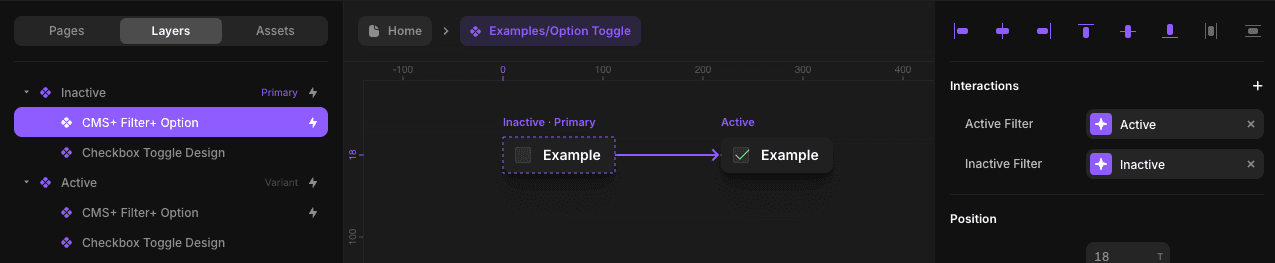
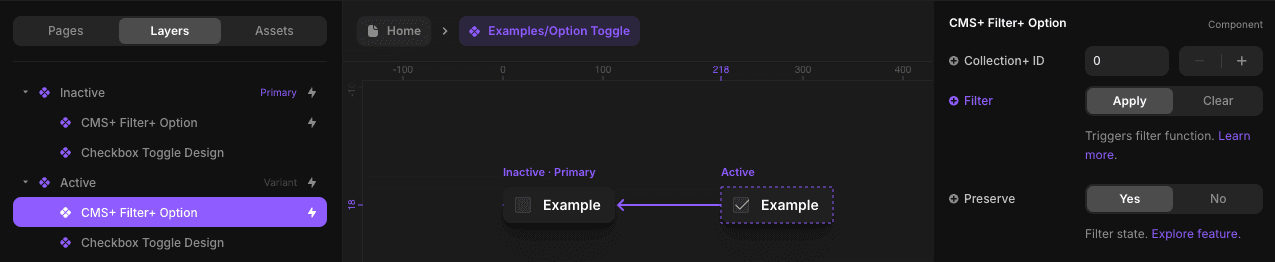
4. Override in other variant
Override Filter in the other variant so the filter runs when switching variants. Learn about triggering functionality.
Conditions
- Equals
- Doesn’t Equals
- Is Before
- Is Before or Equal
- Is After or Equal
- Is Between Dates
- Is Before
- Is Before or Equal *
- Is After
- Is After or Equal *
* Conditions exclusive to CMS Plus.
Using a dynamic date
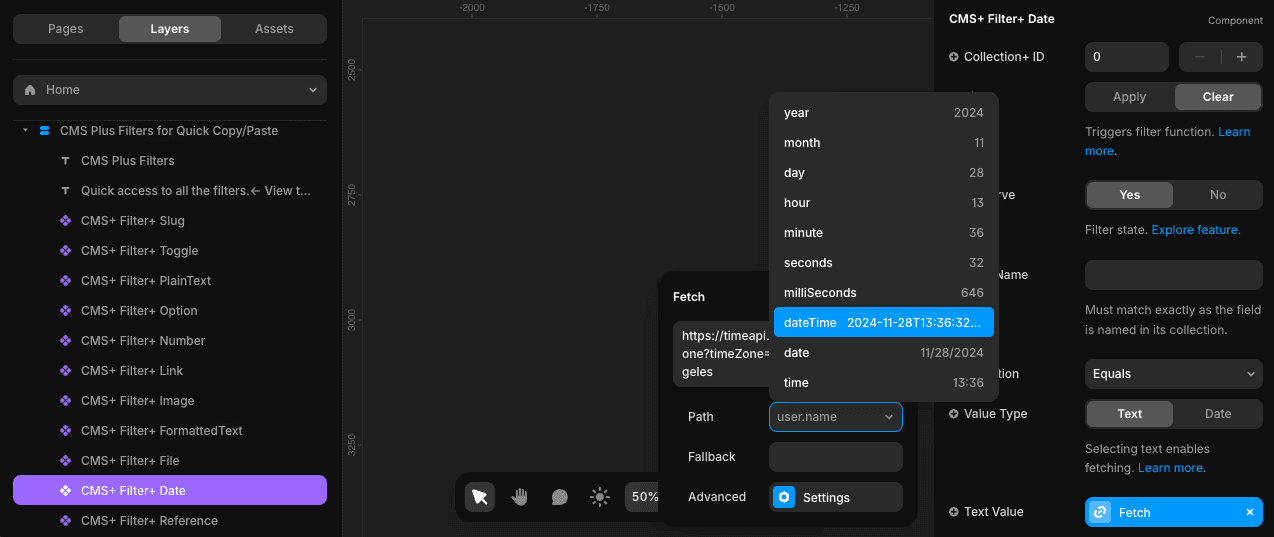
Framer’s native fetching only supports text fields. Learn how to enable fetching. You need an API that returns time in ISO 8601 format. This works for single dates and date ranges.
Example using TimeAPI:
- Set
Value Typeto Text to use Framer’s native fetching - Click the
+next toText Valueand select Add Fetch - Enter your API URL
- Set
Pathto the property that returns a text value in ISO 8601 format (e.g.dateTime)
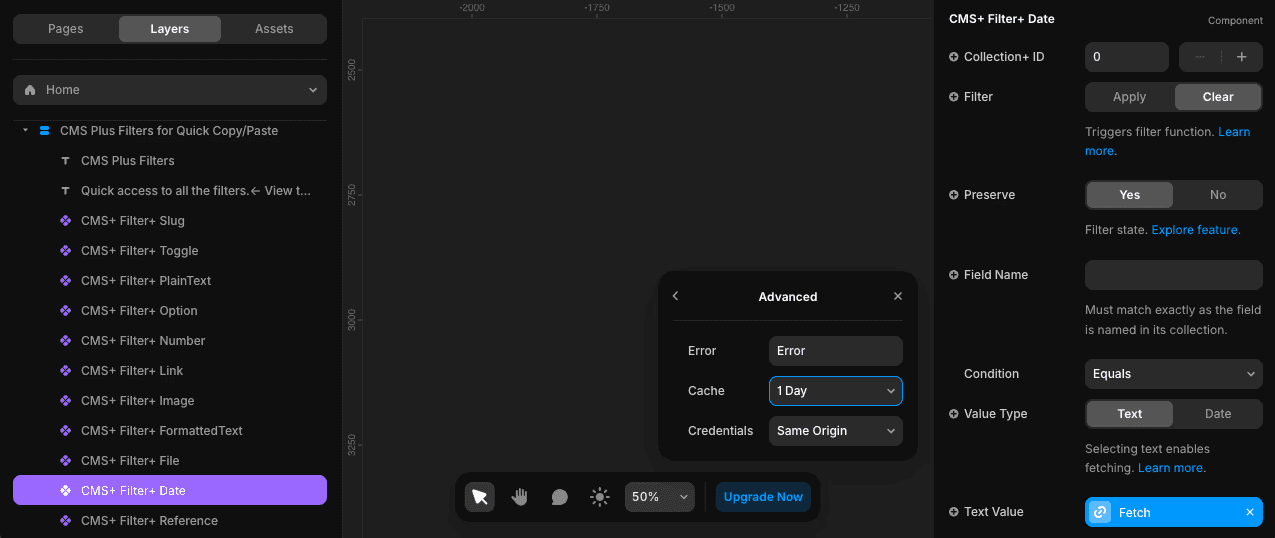
- (Optional) In
Advanced, setCacheto 1 Day to reduce fetch requests
If errors occur, check your API’s documentation. CMS Plus cannot assist with Framer fetching errors.
Related
- Filters+ overview — All filter types
- Collection+ — Core list manager
- Clear+ — Reset filters
- Count+ — Display active filter counts