
Property Controls
-
Collection+ ID— Use the sameIDas the Collection+ you want to filter. Set up your Collection+ first -
Filter— Triggers the apply or clear filter function. Learn about this concept -
Field Name— Must match the field name in your collection -
Preserve— Enable/disable syncing with filter state. Read about preserving -
Condition— Choose the filter option (see Conditions below) -
Value— The criteria for the filter
When you select Is Between Numbers, use these controls:
Start Condition— Whether the start value is inclusive or exclusiveStart— Minimum value of the rangeEnd Condition— Whether the end value is inclusive or exclusiveEnd— Maximum value of the range
Interactions
Active Filter— Variant when the filter is appliedInactive Filter— Variant when the filter is cleared
Important: When
Preserveis enabled, set both interactions. Read about preserving.
Basic Setup
1. Match filter type to field type
Use Filter+ Number only with Number fields.
2. Integrate into your component
Integrate the Number filter into your component. Learn how.
3. Configure controls
Configure controls in the primary variant. If using Preserve, add Active Filter and Inactive Filter interactions.
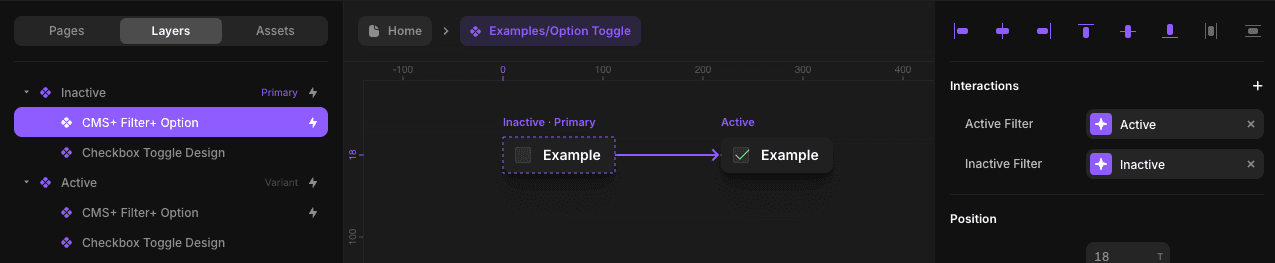
4. Override in other variant
Override Filter in the other variant. Learn about triggering.
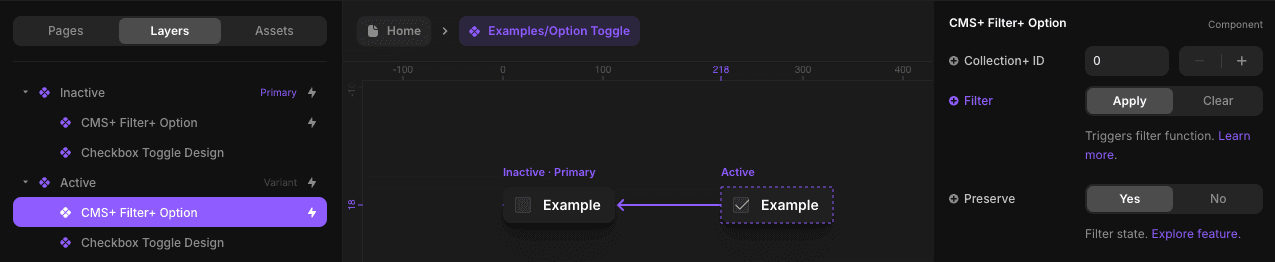
Conditions
- Equals
- Doesn’t Equals
- Greater Than
- Greater Than or Equal
- Less Than
- Less Than or Equal
- Is Between Numbers *
- Greater Than
- Greater Than or Equal
- Less Than
- Less Than or Equal
* Exclusive to CMS Plus.