
Property Controls
-
Collection+ ID— Use the sameIDas the Collection+ you want to filter. Set up your Collection+ first -
Filter— Triggers the apply or clear filter function. Learn about this concept -
Field Name— Must match the field name in your collection -
Preserve— Enable/disable syncing with filter state. Read about preserving -
Condition— Choose the filter option (see Conditions below) -
Value— The criteria for the filter
Slug— From the collection being referenced. Open the referenced collection, find the item, and paste its slug here.
Interactions
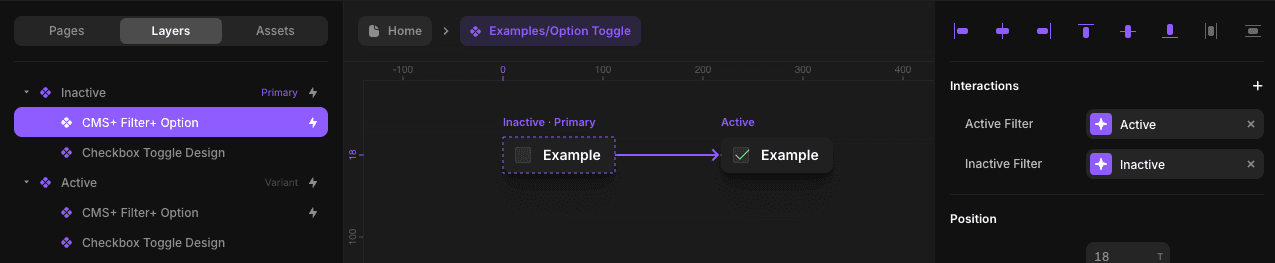
Active Filter— Variant when the filter is appliedInactive Filter— Variant when the filter is cleared
Important: When
Preserveis enabled, set both interactions. Read about preserving.
Basic Setup
1. Match filter type to field type
Use Filter+ Reference only with Reference fields.
2. Integrate into your component
Integrate the Reference filter into your component. Learn how.
3. Configure controls
Configure controls in the primary variant. If using Preserve, add Active Filter and Inactive Filter interactions.
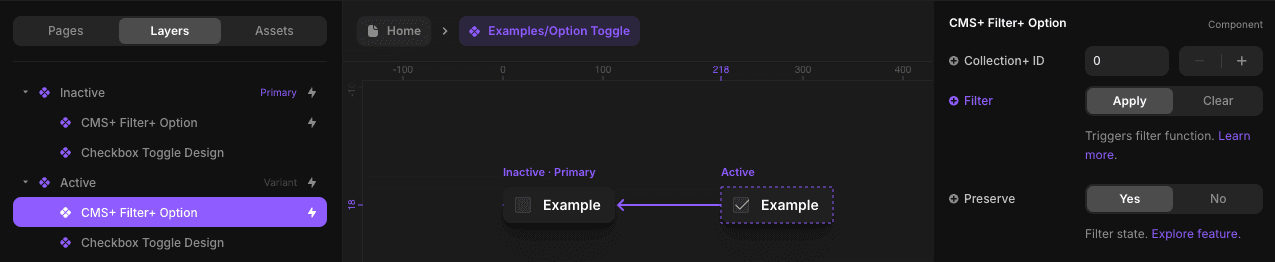
4. Override in other variant
Override Filter in the other variant. Learn about triggering.
Conditions
- Is Set
- Isn’t Set
- Equals
- Doesn’t Equal
- Is Included In
- Isn’t Included In
Example
You have a field Dealership (reference to another collection) and want to filter by Los Angeles:
- Open the referenced collection
- Find the Los Angeles item
- Copy its slug
- Paste the slug into the Filter+ Reference
- Complete the rest of the basic setup